Staging and committing answers “what changed since my last commit”. It does not answer “what has this task done in total”, and for a long time committed work vanished from the right panel the moment the working tree went clean. History and Compare are the two sub-tabs that close that gap.
The Git tab has three sub-tabs: Commit (the staging area), History, and Compare. In a multi-repo task all three follow the repo pill you picked, so you are always looking at one repository at a time.
History: the commit graph
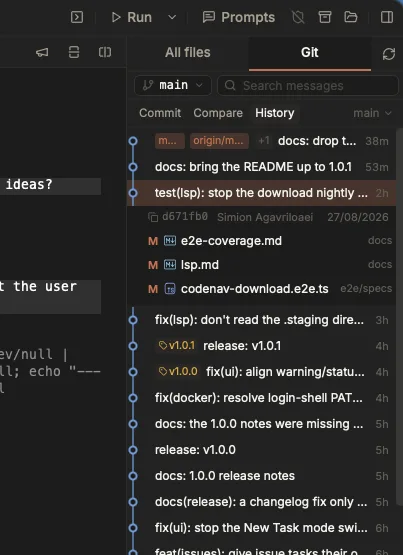
One dense row per commit, the lane gutter drawing the topology and ref chips where branches and tags point. Click a commit for the files it touched, and a file for its diff at that revision.
History is a full-height graph, one dense row per commit: a lane gutter drawing the topology, ref chips where a branch or tag points, the subject, and a relative age. Lane colours come from your theme palette rather than a fixed set.
- Hover a row for the author, the full date and the complete commit message.
- Click a commit to expand the files it touched, and click any file to open its diff at that revision. That is the whole point of the graph: it is a way into a diff, not just a picture of one.
- Unpushed commits are marked, so “Not pushed yet” is visible in the list rather than only as a count on the Push button.
- Copy the full SHA from the row.
Scoping it
The scope control decides which refs the graph starts from:
- Auto, the default: the current branch and its history.
- All: every ref in the repository.
- A ref filter: pick exactly the refs you care about, with a search box for finding them.
First parent only is a separate toggle rather than a fourth scope, because it answers a different question. The scopes answer “starting from which refs”; first-parent answers “how much of the topology”. With it on, a merge stays one row instead of dragging in every commit of the branch it merged, which is what stops a graph scoped to main from filling up with someone else’s feature work.
Searching commit messages
The search box filters by commit message, and git runs the search, not the rows already loaded. A match ten pages back still comes up first. This is the difference between searching a graph and searching a page of a graph.
Compare: what the whole branch adds up to
Compare takes any ref and lists every path that differs between it and your working tree, rendered as a tree. Committed, staged, unstaged and untracked changes are in one list, which is the list a reviewer would see, and the one the Commit tab cannot show you because it only knows about the index.
Because the right side of the comparison is your live working tree rather than a frozen revision:
- Mark as viewed works, and persists, so a large branch can be walked file by file across several sittings. See Editor & diff viewer.
- Inline comments work, so you can leave remarks as you read and send them to the agent as one message.
Together that means a whole feature can be reviewed inside Termic without opening a browser.
Merge base, and turning it off
By default Compare runs from the merge base: the point where the two refs diverged, which is what git diff base...HEAD shows and what a pull request shows. That is almost always what you want, because it excludes commits that landed on the base branch after you branched off.
Turning it off compares the two branch tips directly. The panel says which mode it is in, so a surprising file count has a visible explanation rather than being a mystery.
Multi-repo tasks
In a multi-repo task, History and Compare both follow the repo pill, the same as the Commit tab. Switching the pill switches the graph.
Related
- Git: staging & commits: the Commit sub-tab, staging and pushing.
- Editor & diff viewer: reading a diff, and mark-as-viewed.
- Inline comments: commenting on what you read and sending it to the agent.
- Pull requests: opening a PR once the branch reads right.
- Themes & appearance: where the graph’s lane colours come from.