Termic re-themes both its own chrome and the terminal pane together, so picking a theme actually changes everything you look at, not just the window frame. Appearance settings are where you tune the look and the typography.
UI themes
Seven themes ship built in:
- System: follows your macOS light/dark setting.
- Light
- Claude: the warm terracotta palette, matching Claude Code.
- Dark+
- Solarized Dark
- Cobalt
- Matrix
Each one styles the whole app, sidebar, tabs, dialogs and the terminal colors, as a set, so the terminal never looks out of place against the chrome.
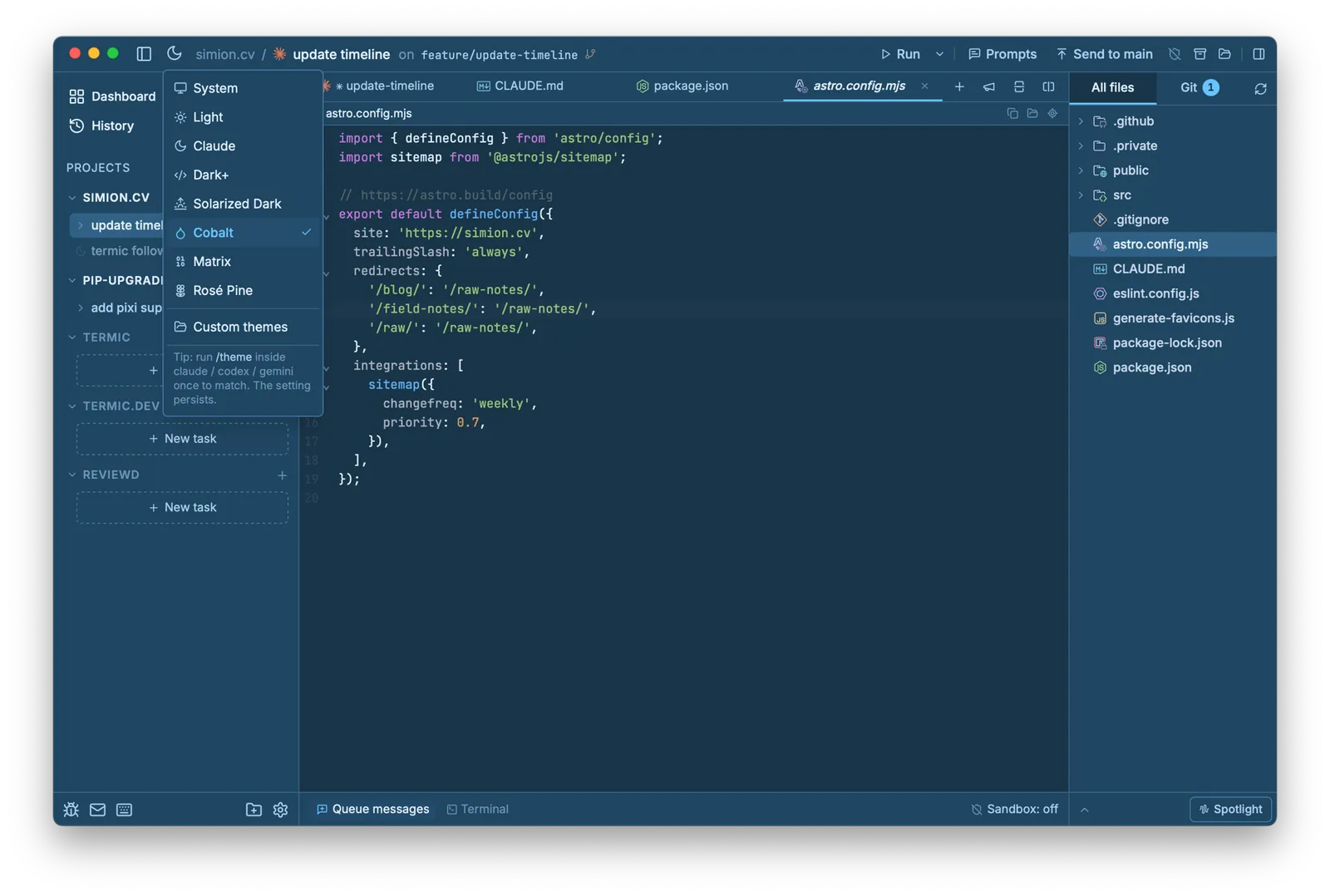
Switch themes from the toolbar and the whole app re-colors at once (here, Cobalt). Appearance settings carry the same list plus a live syntax preview.
Syntax themes
Separately, there are eight syntax themes for the editor and diff view. Appearance settings show a live, syntax-highlighted code preview, so you can see exactly how a theme renders before you pick it, rather than choosing blind and finding out later.
Fonts
You can set the UI font and the terminal / code font. Termic bundles Inter for the interface and JetBrains Mono for code and terminals, and either can be swapped for another installed monospace font for the terminal. If a glyph is missing from your chosen terminal font, Termic falls back to the bundled JetBrains Mono rather than a thinner mismatched system face, so your terminal text stays consistent.
Terminal font weight
There’s a dedicated terminal font weight setting. This exists for a specific reason: the WebGL terminal renderer rasterizes glyphs through Canvas, and WKWebView’s text rendering comes out a touch lighter than macOS Terminal.app. Bumping the weight to Medium (500) closes most of that gap, especially on non-Retina displays. If your terminal text looks faint, this is the setting to reach for.
Scrollback
Terminal scrollback is configurable here too, defaulting to 5,000 lines (the lightweight scratch shell keeps half that). More scrollback uses more memory per terminal, so set it to suit your machine and how far back you typically need to scroll. See Terminal.
Related
- Terminal: rendering, font weight and scrollback behavior.
- Editor & diff viewer: where syntax themes apply.
- Settings reference: the full Appearance section.