Once you’ve reviewed an agent’s diff, the next step is usually to stage the parts you want and commit them. The Git tab in the right panel is a full staging area, so you can do that in Termic instead of dropping to a terminal or a separate Git client.
The Git tab
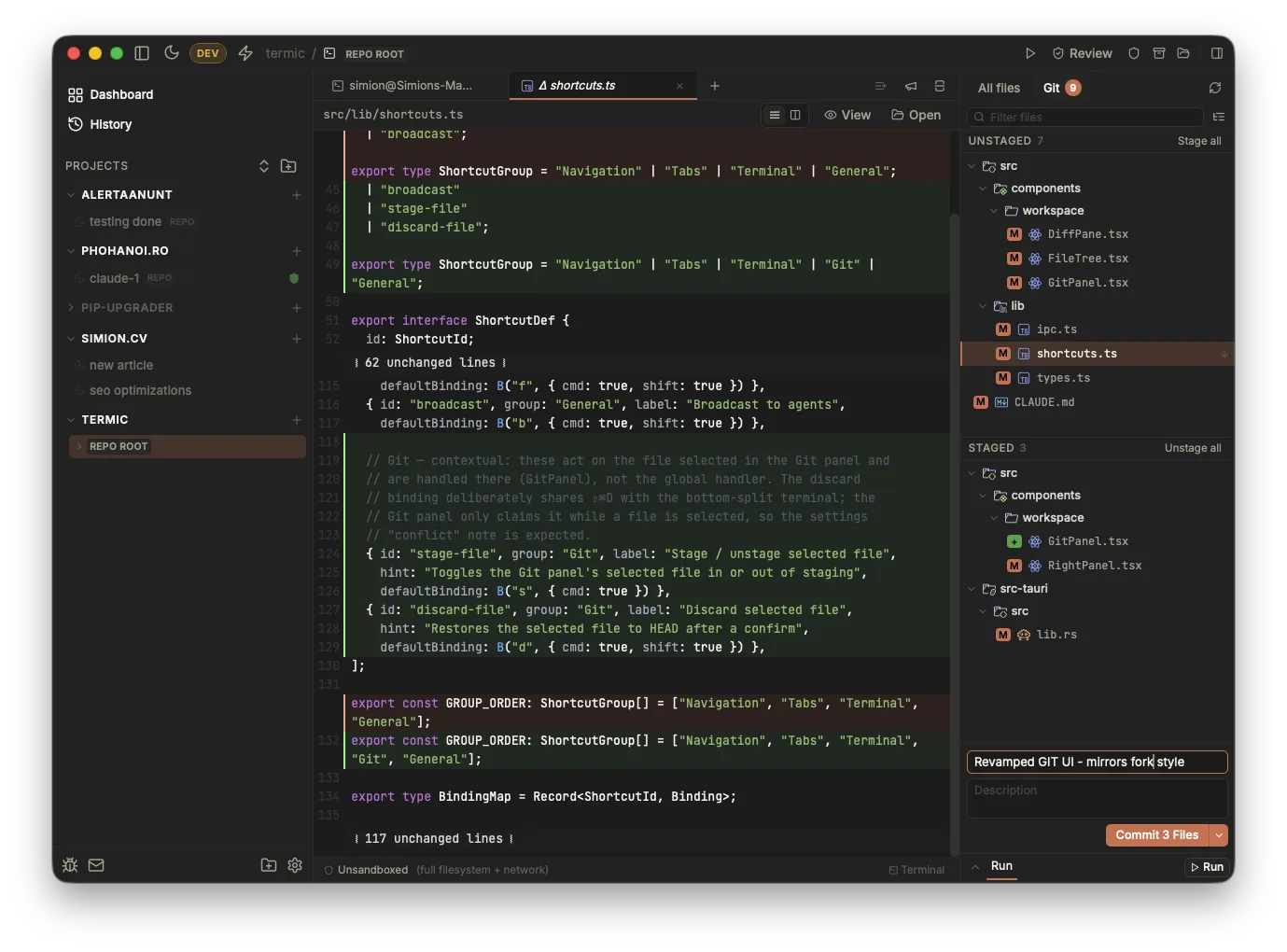
The right panel has two tabs: All files (the file tree) and Git. The Git tab itself has three sub-tabs: Commit, which this page covers, plus History and Compare. The Git tab carries two badges: a green count of repositories with changes (only for multi-repo tasks) and a count of total changed files. A refresh button in the header re-reads both the file tree and the Git status on demand, so you’re never looking at a stale list after running something in a terminal. You rarely need it: the file tree, any open editors, and the Git panel auto-refresh whenever an agent finishes a turn, so the list keeps up with the agent’s work on its own.
The view is split into two panes: Unstaged on top and Staged below. Drag the divider between them to give whichever side you’re working in more room; the split is remembered across launches.
Staging and unstaging
A file moves between the two panes when you stage or unstage it. There are a few ways to do it, pick whichever fits the moment:
- Hover a row and click the arrow that appears: down to stage (it drops to the Staged pane below), up to unstage (it lifts back up).
- Double-click a file to toggle it.
- Stage all / Unstage all in each pane’s header act on everything in that pane.
- In tree view, hovering a folder shows the same arrow: it stages or unstages every file under that directory at once.
After you stage or unstage a single file, it stays selected in its new pane, so you can keep working through a list without losing your place.
Tree, list and combined views
The view menu (top-right of the Git tab) switches how the file lists are drawn:
- Tree: nested folders you can expand and collapse. The default.
- Combined list: files grouped under their directory, shown as a flat list with a dim path heading.
- List: every file as its full repo-relative path, one per row.
The same menu has a Hide untracked files toggle, and the filter box above the lists narrows them to a substring match as you type.
Selecting a file and seeing its diff
Single-click a file to select it. The row stays highlighted (with its stage button pinned visible) and its diff against HEAD opens in the main area, so selecting and reviewing are the same gesture. The diff is the combined working-tree change for that file, side-by-side or unified.
Marking files as viewed
While you work through a review, you can mark each changed file as viewed so you know what’s left. The control is an eye icon (deliberately not a checkbox or an arrow, so it’s never mistaken for staging), and it lives both on the Git panel rows and in the diff header. Each pane keeps a viewed count, so you can see how far through the changes you are at a glance.
Marking a file viewed from the diff header advances to the next unviewed file, in the same order the sidebar shows, and the sidebar selection follows along, so you can clear a review by repeatedly marking the open file. The mark clears itself the moment an agent edits that file again, so a viewed file that changes underneath you comes back as unviewed.
Files with inline review comments also carry a comment count badge in the Git panel. See Inline comments for the full feature.
Right-click menu
Right-clicking a row in the Git panel opens a context menu: Copy path (relative or absolute) and Show in Finder.
Committing
The commit form sits at the bottom of the Git tab:
- A subject line and an optional description.
- A split commit button. The main button commits the staged files (its label counts them, for example “Commit 3 Files”); the caret next to it lets you choose Commit or Commit and Push, and it remembers your choice for next time.
When you push, Termic uses your existing upstream if there is one, and sets it for you on the first push of a fresh worktree branch.
Discarding changes
To throw away a file’s changes, select it and press ⇧⌘D. Termic asks for confirmation first, because this can’t be undone: tracked files are restored to HEAD, and untracked files are deleted from disk.
Multi-repo tasks
In a multi-repo task, the Git tab shows a row of wrapping sub-tab pills, one per repository that has changes, each badged with its own file count. Selecting a pill switches the whole staging area, including the commit form, to that repository, so each repo’s staging and commit are kept separate.
Keyboard
| Shortcut | Action |
|---|---|
⌘S | Stage the selected file if it’s unstaged, unstage it if it’s staged |
⇧⌘D | Discard the selected file’s changes (with a confirm) |
Both act on the file selected in the Git tab and only fire when one is selected, so they don’t interfere with typing in the editor or the commit form. Like every binding in Termic they’re rebindable in Settings → Shortcuts.
Related
- History & compare: the other two sub-tabs, the commit graph and the branch diff.
- Pull requests: opening a PR from the task once it is committed.
- Editor & diff viewer: reading the changes before you stage them.
- Multi-repo tasks: how the per-repo sub-tabs work.
- Prompt library: fire the Review prompt at a second agent before you commit.
- Keyboard shortcuts: the full reference, and rebinding.